Deus XT for iPad and Apple PencilNo ink on the glassPressure, tilt and hover reach your computer$14.99, onceOne purchase, everything includedThe companion is freeDeus XT for iPad and Apple PencilNo ink on the glassPressure, tilt and hover reach your computer$14.99, onceOne purchase, everything includedThe companion is free
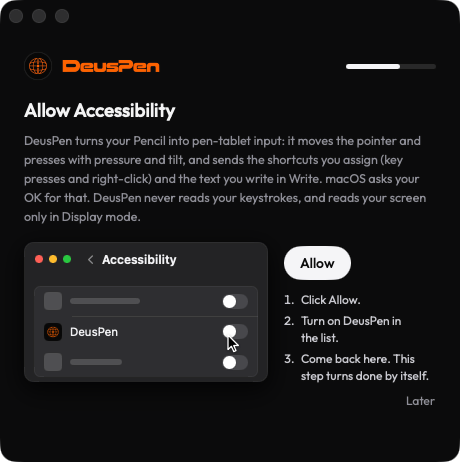
Accessibility lets the companion move the pointer and send pen pressure, tilt and clicks to your apps. Without it, nothing reaches your Mac.
MacAsked during setup
On this page
Turn it on
Open System Settings › Privacy & Security › Accessibility.The companion's welcome can open this page for you.
Switch Deus XT on.macOS may ask for your password.
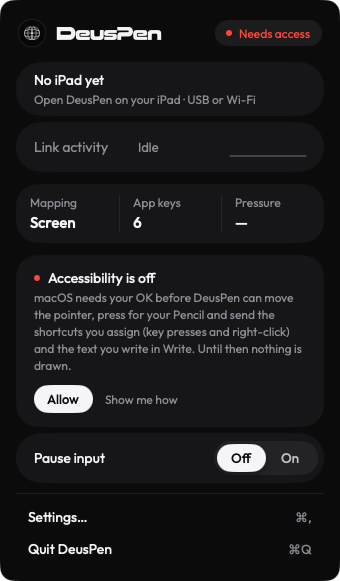
Check the companion.Its Accessibility row changes from Needs access to allowed. Hover the Pencil: the pointer should move.
The companion's welcome can open this page for you.Its Accessibility row changes from Needs access to allowed.
After an update
If the pointer stops moving after you update the companion, turn Deus XT off and on again in the Accessibility list, then quit and reopen the companion. If that does not help, remove Deus XT from the list with the minus button and add it again.
Pause input
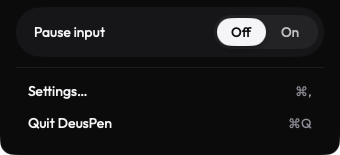
To stop the Pencil reaching your Mac without disconnecting, choose Pause input in the companion's menu bar panel. Turn it off to draw again.
Choose Pause input in the companion's menu bar panel. Turn it off to draw again.
Still stuck? Email support@deuspen.com with your iPad and computer models, the app you draw in, whether you were on the cable or Wi-Fi, and what you expected. The Diagnostics panel in the companion's Settings shows the connection state in words; tell us what it says.